How to Compress a PDF to 100KB (Free, Private, and Actually Works)
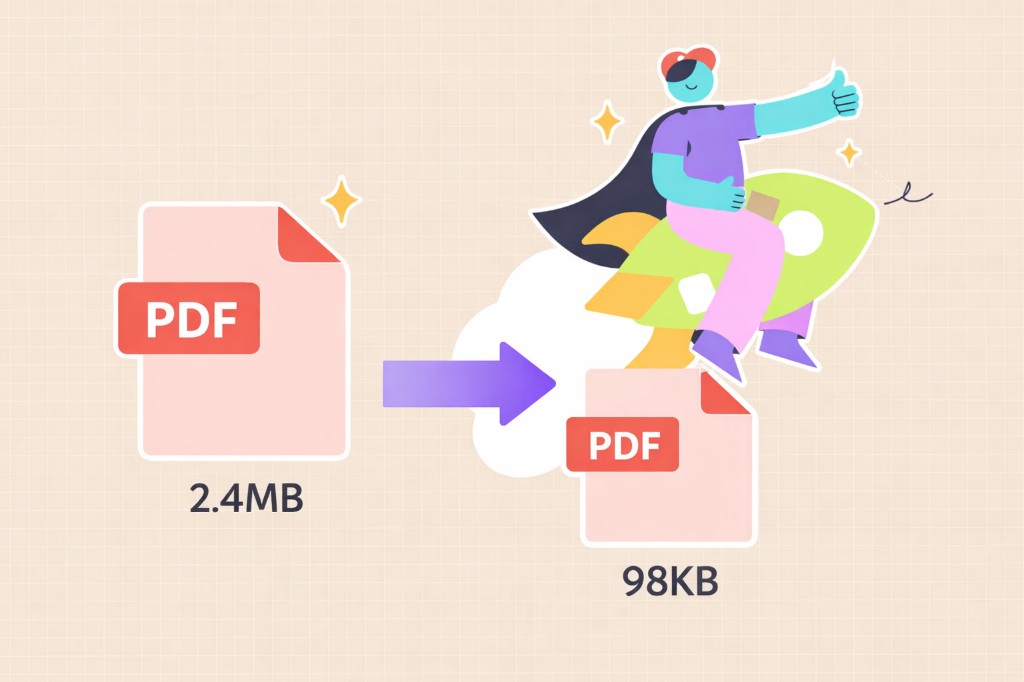
Most people hit this problem when a form or email says “max 100KB” and your file is way over. You try a random compressor online, it barely shrinks it, or worse, it asks you to upload something sensitive.
Here’s the simple way to fix it.
Quick answer
To compress a PDF to 100KB:
- Reduce image quality inside the PDF (this is the biggest factor)
- Remove unnecessary pages or blank space
- Flatten the PDF (turn layers into a single layer)
- Use a compression tool that lets you control file size, not just “low/medium/high”
- Avoid re-exporting from Word or Google Docs repeatedly (it often increases size)
Step-by-step: compress a PDF to 100KB
1. Start with a copy of your file
Always duplicate your original. Compression is lossy, meaning you may lose some quality.
2. Remove anything you don’t need
This matters more than people think.
- Delete extra pages
- Crop large margins
- Remove embedded fonts if possible
If your PDF is just a scanned document, skip ahead. The next step is key.
3. Lower image resolution
Most large PDFs are big because of images.
If your file includes scans or photos:
- Reduce resolution to around 100–150 DPI
- Convert color images to grayscale if possible
- Avoid “print quality” exports
This alone can cut file size by 70% or more.
4. Use targeted PDF compression (not generic)
Most tools just say “compress” and guess.
What you actually want is:
- control over quality
- aggressive compression options
- no weird re-encoding that bloats the file again
Aim to compress in stages:
- Medium compression
- Check file size
- Apply stronger compression if needed
If you want a tool built around choosing a target size (and doing the heavy work in your browser so the file stays on your device), try Compress PDF on PDFZen—Quick mode keeps text selectable; Target max size rasterizes pages to approach your limit, which is often what you need when a hard cap like 100KB is non-negotiable.
5. Check the result and adjust
If you’re still above 100KB:
- reduce image quality further
- try grayscale conversion
- remove any remaining unnecessary elements
Why compressing to 100KB is hard
100KB is extremely small for a PDF.
Here’s what’s happening behind the scenes:
- PDFs store images, fonts, and layout data
- Even a single high-resolution image can be over 1MB
- Many tools won’t compress aggressively enough because they try to preserve quality
So to hit 100KB, you usually have to trade off:
- image clarity
- color depth
- or both
That’s normal. The goal is “readable,” not perfect.
The best method (without uploading your file anywhere)
If you’re dealing with personal documents, uploads can feel risky. A lot of “free” tools process your file on their servers.
A simpler option is using a tool that runs directly in your browser.
PDFZen is built around local, in-browser processing for core tools like compression:
- your file isn’t sent to our servers for the main compress flow
- no account required to try it
- no watermarks added by PDFZen on the result screen
You open your PDF, pick Quick or Target max size, and download the result. For very large PDFs, you can also limit which pages you process so the tab stays stable.
It’s not magic, though. If your file starts at 10MB, getting to 100KB will still require aggressive compression—and Target mode turns pages into images, so text won’t stay selectable. That’s the trade-off for hitting a tiny cap. At least you stay in control of it.
Common mistakes that keep your PDF too large
1. Re-exporting from Word or Google Docs repeatedly
Each export can add hidden data or increase file size.
2. Using only “standard compression”
Most tools default to safe settings. That won’t get you to 100KB.
3. Ignoring images
If your PDF has images, that’s the main problem. Text alone is tiny.
4. Keeping full color when you don’t need it
Switching to grayscale can cut size dramatically.
5. Trying one tool once and giving up
Compression often takes a couple passes to dial in.
FAQ
Can every PDF be compressed to 100KB?
No. If your file has lots of images or pages, it may not be possible without making it unreadable.
Will compression reduce quality?
Yes, especially at aggressive levels. The goal is to keep it readable, not perfect.
Is it safe to use online PDF compressors?
Some are fine, but many require uploading your file to a server. If your document is sensitive, it’s better to use a local or in-browser tool.
Why is my PDF still too big after compressing?
Usually because:
- images are still high resolution
- color hasn’t been reduced
- fonts and metadata are still embedded
What’s the fastest way to shrink a scanned PDF?
Lower DPI to around 100 and convert to grayscale. That gives the biggest size drop.
Helpful next steps
Once you’ve compressed your PDF, you might also want to:
- Merge PDF — combine files into one clean document
- Split PDF — break a large file into smaller parts before compressing
- Remove metadata — strip hidden properties for extra privacy
- Sign PDF — add a signature without printing
These are small improvements that make files easier to send, store, and manage—pick what fits your workflow; no pressure.
If you run into this problem often, it’s worth getting comfortable with compression settings. Once you understand what actually affects file size, you can fix most PDFs in a minute or two.